This guide documents a practical pattern for connecting an existing business application to Microsoft Teams outbound PSTN calling. A salesperson selects a customer and starts a call from the application. After the customer answers, the system can play a recorded or AI-generated voice message, or connect an application-hosted real-time media pipeline for a two-way AI conversation.
The implementation has two distinct workstreams: Microsoft infrastructure configuration and application integration. Keeping them separate is important: a successful Graph call-creation response proves that call setup has started, but it does not mean that audio will automatically play.
The examples use dummy tenant IDs, application IDs, domains and telephone numbers. Replace them with values from your own Microsoft tenant. The portal walkthrough illustrations are based on the supplied setup guide; portal labels can vary by tenant and Microsoft UI version.
1. Solution architecture
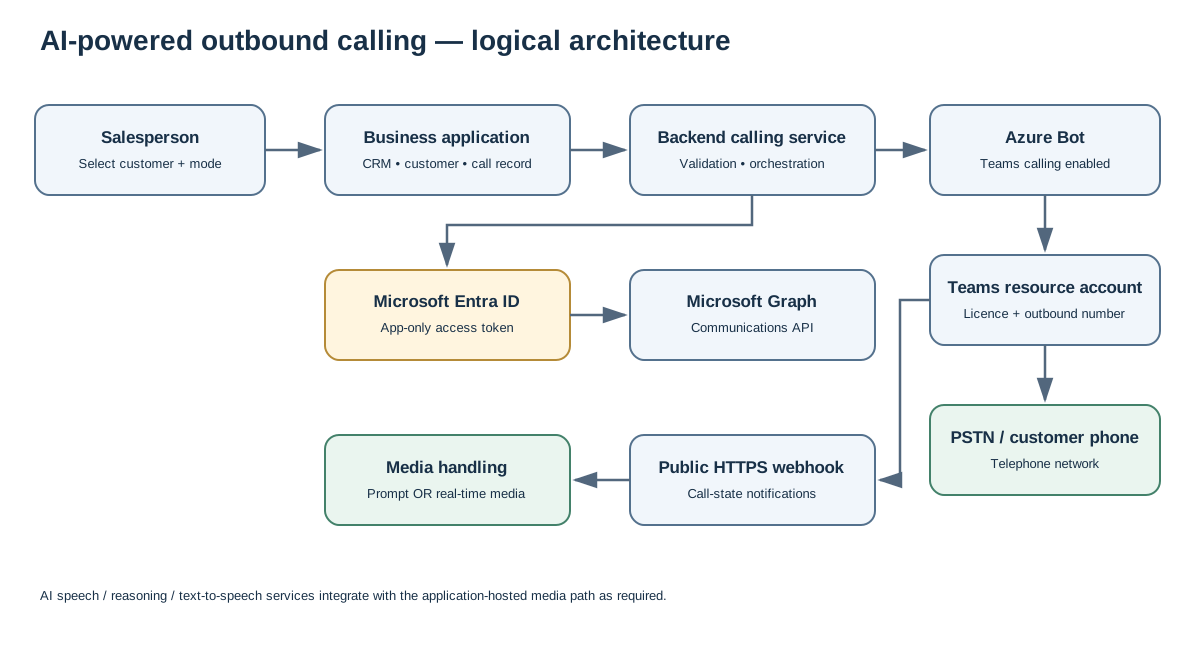
| Component | Responsibility |
|---|---|
| Business application / CRM | Customer selection, salesperson action and call history |
| Backend calling service | Validates requests, obtains tokens and orchestrates calls |
| Microsoft Entra ID | App-only identity and OAuth token issuance |
| Azure Bot | Microsoft Teams calling integration |
| Microsoft Graph Communications API | Call creation and call control |
| Teams resource account | Application calling identity and assigned outbound number |
| PSTN connectivity | Routes the call to the customer's telephone |
| Calling webhook | Receives call-state notifications |
| Media pipeline | Plays prompts or processes real-time audio |
| AI / speech services | Optional speech recognition, AI reasoning and text-to-speech |
1.1 End-to-end workflow
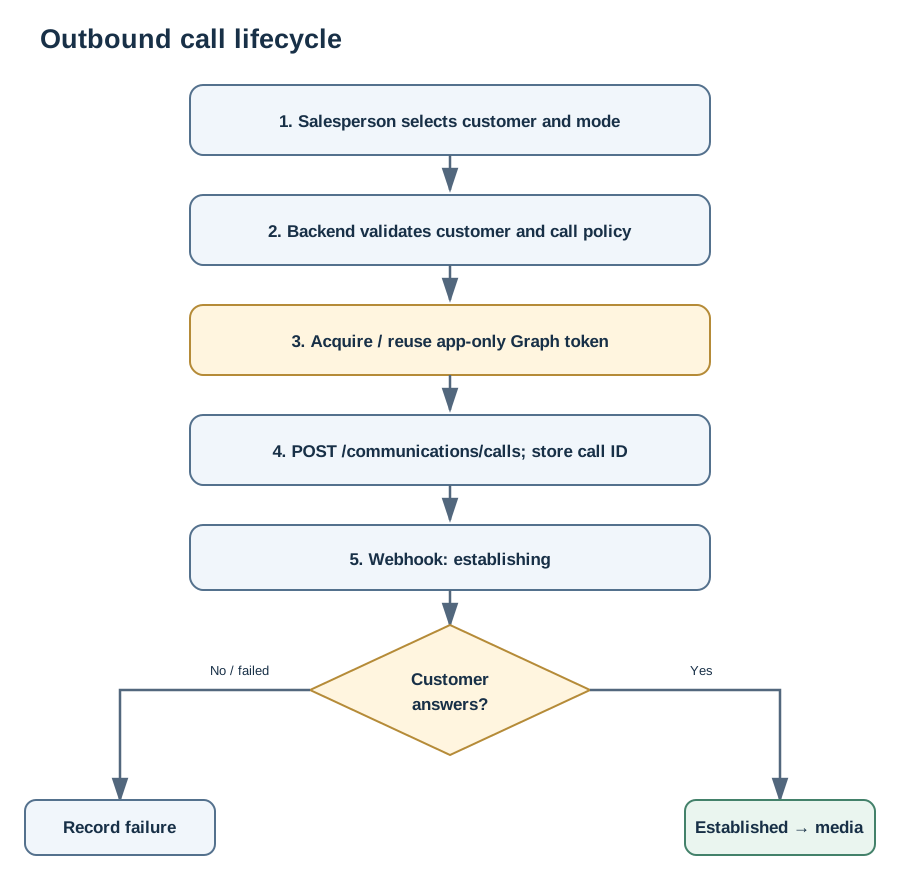
- The salesperson selects a customer and calling mode.
- The backend validates the destination number and business rules.
- The backend obtains or reuses an app-only Microsoft Graph access token.
- The backend creates the call through Microsoft Graph.
- Teams attempts to establish the PSTN call using the configured resource account.
- Graph sends call-state notifications to the public webhook.
- When the call reaches established, the application starts the selected media workflow.
- The application ends the call when the interaction is complete and stores the outcome.
2. Prerequisites and responsibilities
| Requirement | Purpose |
|---|---|
| Microsoft Entra administrative access | App registration, permissions and consent |
| Azure subscription access | Azure Bot resource creation |
| Teams administrative access | Resource account and phone-number configuration |
| Teams Phone Resource Account licence | Enables the resource account for voice applications |
| PSTN connectivity | Calling Plan, Operator Connect or Direct Routing |
| Public HTTPS endpoint | Receives calling webhook notifications |
| TLS certificate | Secures the webhook endpoint |
| Microsoft Graph PowerShell | App registration and licence operations |
| MicrosoftTeams PowerShell | Teams resource-account and number operations |
| Azure CLI | Optional Azure Bot provisioning |
Install the PowerShell modules:
Install-Module MicrosoftTeams -Scope CurrentUser -Force
Install-Module Microsoft.Graph -Scope CurrentUser -Force
Use the least-privileged role combination approved by your organisation. Allow time for licensing, number assignment and resource-account binding to propagate; some changes may take up to 24 hours.
3. Infrastructure setup — Microsoft Entra ID
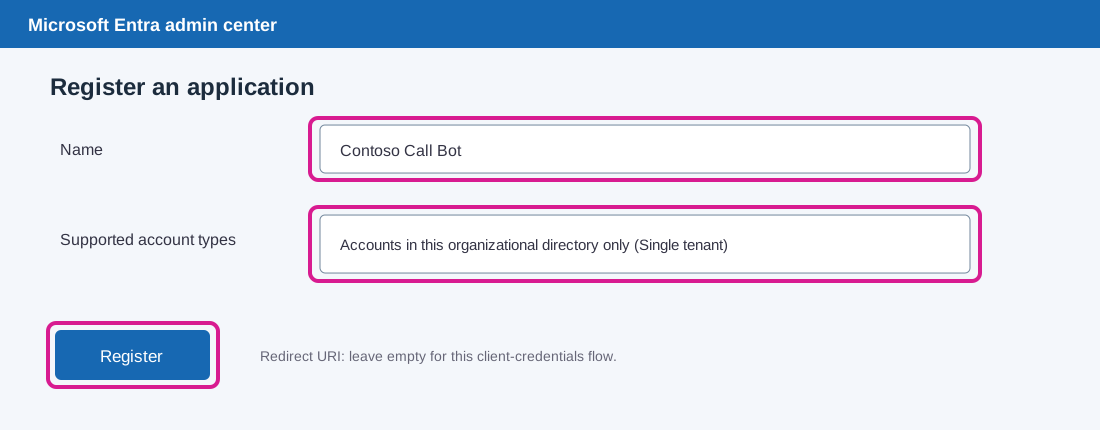
Step 1: Register the application
Open Microsoft Entra admin center.
Navigate to Entra ID → App registrations → New registration.
Configure:
| Field | Value |
|---|---|
| Name | Contoso Call Bot (example) |
| Supported account types | Accounts in this organizational directory only (Single tenant) |
| Redirect URI | Leave empty for this client-credentials flow |
Select Register. From the Overview page, copy the Application (client) ID and Directory (tenant) ID.
Step 2: Create a client secret
Navigate to App registrations → your application → Certificates & secrets → Client secrets → New client secret.
Enter a description, select an expiry period that follows your credential policy, and select Add. Copy the secret Value immediately and store it securely.
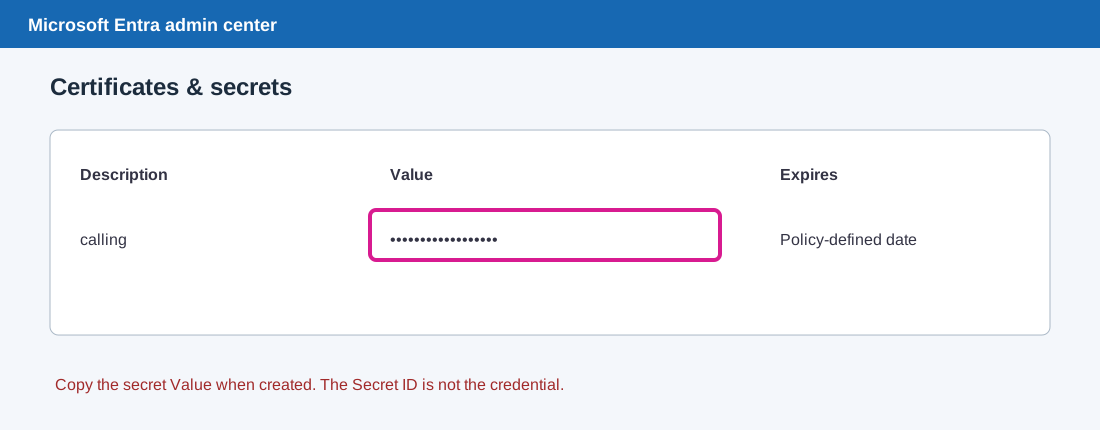
Important: The application uses the secret Value, not the Secret ID. The Value is shown only once. Never place it in frontend code, source control or application logs. For production, use a managed secrets store and rotate credentials before expiry.
Step 3: Add Microsoft Graph application permissions
Navigate to API permissions → Add a permission → Microsoft Graph → Application permissions.
Add permissions according to the functionality being implemented:
| Permission | When it is needed |
|---|---|
| Calls.Initiate.All | Initiating outbound 1:1 calls, including PSTN |
| Calls.AccessMedia.All | Application-hosted real-time media |
| Calls.InitiateGroupCall.All | Only when the application initiates group calls |
| Calls.JoinGroupCall.All | Only when the application joins meetings or group calls |
| CallRecords.Read.All | Optional call-history and quality-record access |
Select Grant admin consent and confirm.
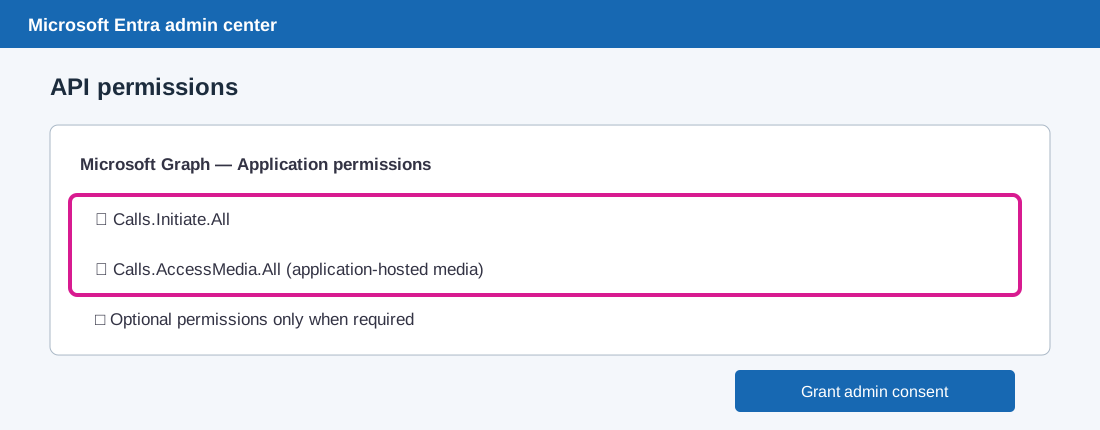
Use Application permissions for the app-only client-credentials architecture described here. Calls.Initiate.All is the key call-initiation permission. Add Calls.AccessMedia.All when implementing application-hosted media. Do not add optional permissions unless the corresponding capability is required.
4. Infrastructure setup — Azure Bot and Teams
Step 4: Create the Azure Bot
Open Azure portal, search for Azure Bot, and select Create.
Configure the bot:
| Field | Example |
|---|---|
| Bot handle | contoso-callbot |
| Subscription | Your Azure subscription |
| Resource group | rg-callbot |
| Type of App | Single Tenant |
| Creation type | Use existing app registration |
| App ID | Entra application client ID |
| App tenant ID | Entra tenant ID |
Select Review + create, then Create.
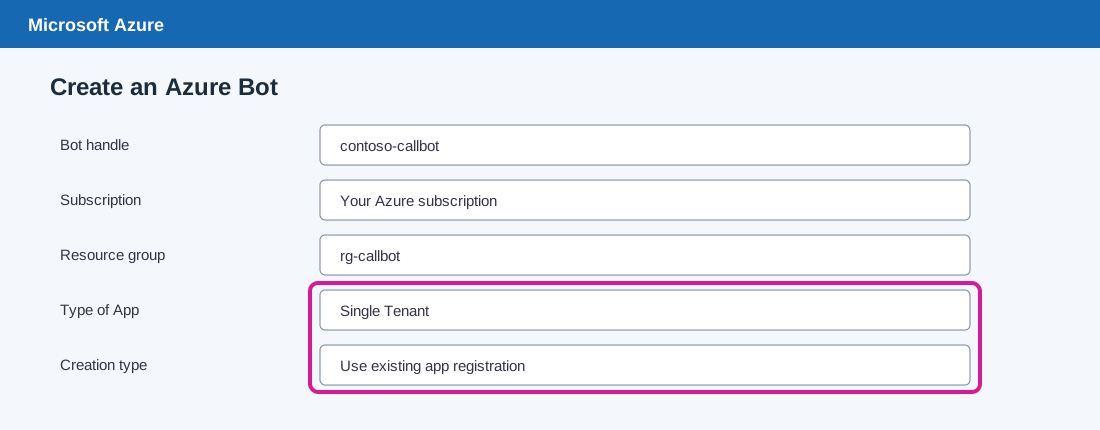
After deployment, open Configuration and verify that the Microsoft App ID and App Tenant ID match the Entra registration. For a calling-only bot, the messaging endpoint can remain empty if messaging is not part of the implementation.
Step 5: Enable the Microsoft Teams channel and calling
In the Azure Bot resource, navigate to Settings → Channels. Select Microsoft Teams, accept the applicable terms, choose the Microsoft Teams commercial channel and apply.
Open the Calling tab:
- Enable Enable calling.
- Enter the public HTTPS calling webhook URL.
- Select Apply.
- Return to Channels and verify that Microsoft Teams reports Healthy.
Example webhook:
https://app.contoso.com/api/calling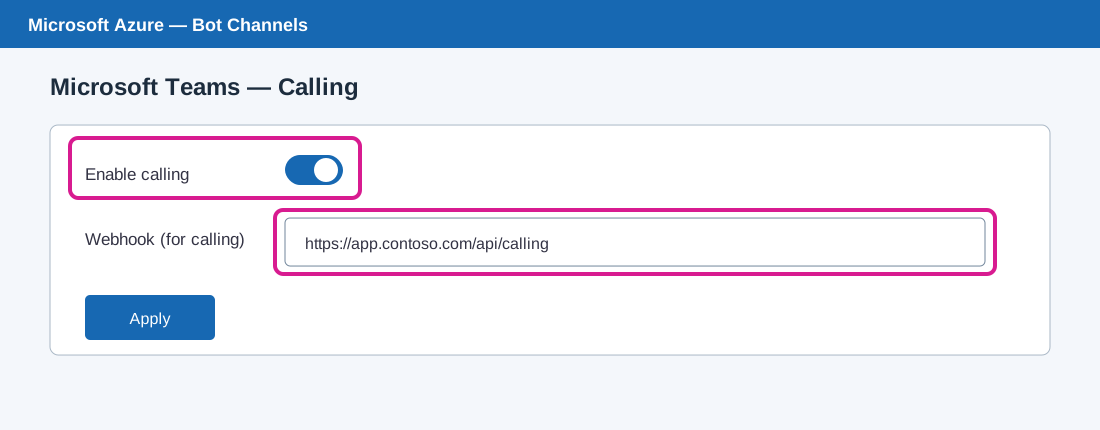
Critical URL check: The webhook URL configured on the Azure Bot Calling tab and the callbackUri supplied in each Graph call request must be the same address. It must be publicly reachable over HTTPS with a valid certificate.
5. Infrastructure setup — Teams resource account and PSTN number
Step 6: Create and bind the resource account
The resource account is the calling identity. It is bound to the bot application ID, holds the required licence and owns the outbound number. It is not the salesperson's ordinary Teams user identity.
The setup guide creates this application instance with Teams PowerShell:
New-CsOnlineApplicationInstance -UserPrincipalName $RaUpn -DisplayName $RaName -ApplicationId $ClientId

$ra = Get-CsOnlineApplicationInstance -Identity $RaUpn
$RaObjectId = $ra.ObjectId

Sync-CsOnlineApplicationInstance -ObjectId $RaObjectId -ApplicationId $ClientId
The object ID returned by Get-CsOnlineApplicationInstance is the value later supplied as source.identity.applicationInstance.id in the Graph call request.
The account appears in Teams admin center under Voice → Resource accounts with resource-account type Other.
Step 7: Set usage location and assign licences
Open Microsoft 365 admin center.
Navigate to Users → Active users → select the resource account.
- Open the Account/contact information settings.
- Set Usage location to the country associated with the telephone number.
- Open Licences and apps.
- Assign Microsoft Teams Phone Resource Account.
- Assign the applicable Calling Plan when using Microsoft Calling Plans.
- Assign Communication Credits if using Pay-As-You-Go.
- Save the changes.
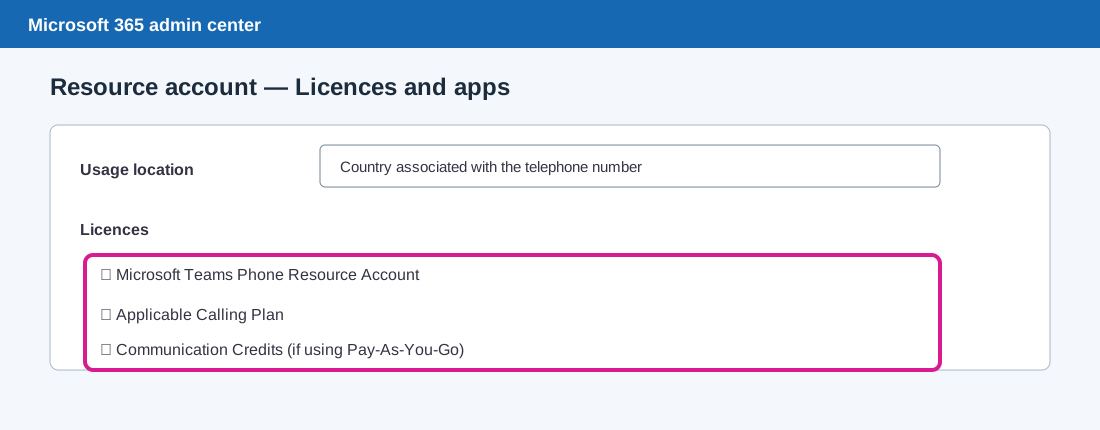
The setup guide identifies PHONESYSTEM_VIRTUALUSER as the Teams Phone Resource Account SKU. The Calling Plan SKU depends on the tenant subscription and calling model. Communication Credits (MCOPSTNC) are relevant to applicable Pay-As-You-Go configurations. Do not copy an example SKU without checking the tenant's available subscriptions.
Step 8: Obtain a telephone number
Open Teams admin center.
Navigate to Voice → Phone numbers → Add.
- Enter an order name and select the country.
- Select the number type intended for resource accounts / voice apps. Depending on the portal version, this may be labelled Resource account (toll) or Voice app (toll).
- Do not select a normal User (subscriber) number for this workflow.
- Select the city/area code and quantity.
- Review and place the order.
- Wait until the number appears as Unassigned.
Step 9: Assign the telephone number
Navigate to Voice → Resource accounts → select the resource account → Assign/unassign phone number.
Select the correct phone-number type: Calling Plan, Operator Connect or Direct Routing.
Choose the acquired number and save. Verify that the resource account shows the assigned number and Licensed status.
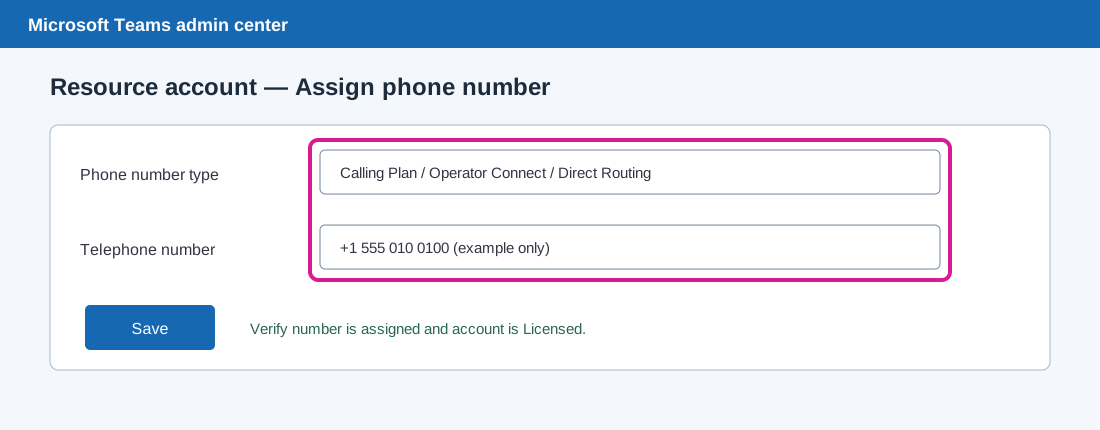
For Direct Routing, also grant an Online Voice Routing Policy that can route calls to the PSTN. A number appearing in the portal does not by itself prove that outbound routing is working.
6. Infrastructure automation — PowerShell and Azure CLI
The portal walkthrough explains where to configure each item. The following sequence captures the equivalent operations. Run only the sections required for your tenant; do not create a duplicate application or resource account if one already exists.
6.1 Define variables
$TenantId     = "<TENANT_ID>"
$AppName      = "Contoso Call Bot"
$RaUpn        = "[email protected]"
$RaName       = "Contoso Call Bot"
$UsageCountry = "US"
$PhoneNumber  = "+15550100100"
$WebhookUrl   = "https://app.contoso.com/api/calling"
6.2 Register the application and grant Graph permissions
Connect-MgGraph -TenantId $TenantId -Scopes "Application.ReadWrite.All","AppRoleAssignment.ReadWrite.All","User.ReadWrite.All","Organization.Read.All"

$app = New-MgApplication -DisplayName $AppName -SignInAudience "AzureADMyOrg"
$sp = New-MgServicePrincipal -AppId $app.AppId
$ClientId = $app.AppId

$secret = Add-MgApplicationPassword -ApplicationId $app.Id -PasswordCredential @{ displayName = "calling"; endDateTime = (Get-Date).AddMonths(24) }
$secret.SecretText

$graph = Get-MgServicePrincipal -Filter "appId eq '00000003-0000-0000-c000-000000000000'"
$wanted = "Calls.Initiate.All","Calls.AccessMedia.All"
$roles = $graph.AppRoles | Where-Object { $wanted -contains $_.Value }

Update-MgApplication -ApplicationId $app.Id -RequiredResourceAccess @(@{
  resourceAppId = $graph.AppId
  resourceAccess = @($roles | ForEach-Object { @{ id = $_.Id; type = "Role" } })
})

foreach ($r in $roles) {
  New-MgServicePrincipalAppRoleAssignment -ServicePrincipalId $sp.Id -PrincipalId $sp.Id -ResourceId $graph.Id -AppRoleId $r.Id | Out-Null
}
If the app already exists, skip creation and retrieve its existing service principal. Add only the permissions needed for the selected media mode.
6.3 Create the Azure Bot using Azure CLI
The portal is an alternative to this CLI sequence:
az login --tenant <TENANT_ID>
az group create --name rg-callbot --location eastus
az bot create --resource-group rg-callbot --name contoso-callbot --app-type SingleTenant --appid <CLIENT_ID> --tenant-id <TENANT_ID> --sku F0
az bot msteams create --resource-group rg-callbot --name contoso-callbot --enable-calling true --calling-web-hook https://app.contoso.com/api/calling
az bot msteams show --resource-group rg-callbot --name contoso-callbot
CLI parameters and available SKUs can change with Azure CLI versions and service updates. Check the current CLI help if a parameter is rejected.
6.4 Create and bind the resource account
Connect-MicrosoftTeams -TenantId $TenantId
New-CsOnlineApplicationInstance -UserPrincipalName $RaUpn -DisplayName $RaName -ApplicationId $ClientId
$ra = Get-CsOnlineApplicationInstance -Identity $RaUpn
$RaObjectId = $ra.ObjectId
Sync-CsOnlineApplicationInstance -ObjectId $RaObjectId -ApplicationId $ClientId
6.5 Assign usage location and licences
Get-MgSubscribedSku | Select-Object SkuPartNumber, SkuId, @{n="Free";e={$_.PrepaidUnits.Enabled - $_.ConsumedUnits}}
Update-MgUser -UserId $RaUpn -UsageLocation $UsageCountry

$skuParts = @("PHONESYSTEM_VIRTUALUSER","<CALLING_PLAN_SKU_PART_NUMBER>","MCOPSTNC")
$skus = Get-MgSubscribedSku | Where-Object { $skuParts -contains $_.SkuPartNumber }

Set-MgUserLicense -UserId $RaUpn -AddLicenses @($skus | ForEach-Object { @{ SkuId = $_.SkuId } }) -RemoveLicenses @()
Replace the Calling Plan placeholder with the SKU returned by the first command. Do not assign a SKU the tenant does not own or does not require.
6.6 Assign the number and voice-routing policy
Set-CsPhoneNumberAssignment -Identity $RaUpn -PhoneNumber $PhoneNumber -PhoneNumberType CallingPlan

# Direct Routing only:
Grant-CsOnlineVoiceRoutingPolicy -Identity $RaUpn -PolicyName "<YOUR_VOICE_ROUTING_POLICY>"
For Operator Connect or Direct Routing, use the corresponding phone-number type supported by the tenant.
6.7 Verify infrastructure readiness
Get-CsOnlineApplicationInstance -Identity $RaUpn | Format-List ObjectId, ApplicationId, PhoneNumber, TenantId
Get-CsOnlineUser $RaUpn | Format-List DisplayName, AccountType, EnterpriseVoiceEnabled, LineUri, FeatureTypes, AssignedPlan
Get-CsPhoneNumberAssignment -AssignedPstnTargetId $RaUpn | Format-List TelephoneNumber, NumberType, ActivationState, Capability, PstnAssignmentStatus
Expected checks:
| Field | Expected value |
|---|---|
| ApplicationId | Matches the bot app client ID |
| AccountType | ResourceAccount |
| EnterpriseVoiceEnabled | True |
| LineUri | tel: followed by the assigned number |
| FeatureTypes | Includes VoiceApp and applicable calling features |
| AssignedPlan | Includes MCOEV_VIRTUALUSER |
| ActivationState | Activated |
| Capability | Includes OutboundCalling |
| PstnAssignmentStatus | VoiceApplicationAssigned |
Stop and correct the infrastructure if these values are not as expected.
7. Prove the infrastructure with a direct test call
Before integrating the business application, place a test call directly from PowerShell. This isolates Microsoft tenant, resource-account, licence, number and Graph permission issues from application code.
7.1 Obtain an app-only token
$Secure = Read-Host "Client secret" -AsSecureString
$ClientSecret = [Runtime.InteropServices.Marshal]::PtrToStringAuto([Runtime.InteropServices.Marshal]::SecureStringToBSTR($Secure))

$Token = (Invoke-RestMethod -Method Post -Uri "https://login.microsoftonline.com/$TenantId/oauth2/v2.0/token" -ContentType "application/x-www-form-urlencoded" -Body @{
  client_id = $ClientId
  client_secret = $ClientSecret
  scope = "https://graph.microsoft.com/.default"
  grant_type = "client_credentials"
}).access_token
Inspect the JWT claims locally. The token should contain the expected app ID, tenant ID and Calls.Initiate.All role. Do not paste access tokens into tickets, chat or logs.
7.2 Create the test call
Send a POST request to:
https://graph.microsoft.com/v1.0/communications/callsExample request:
{
  "@odata.type": "#microsoft.graph.call",
  "callbackUri": "https://app.contoso.com/api/calling",
  "tenantId": "{TENANT_ID}",
  "source": {
    "@odata.type": "#microsoft.graph.participantInfo",
    "identity": {
      "@odata.type": "#microsoft.graph.identitySet",
      "applicationInstance": {
        "@odata.type": "#microsoft.graph.identity",
        "id": "{RESOURCE_ACCOUNT_OBJECT_ID}",
        "displayName": "Contoso Call Bot"
      }
    }
  },
  "targets": [{
    "@odata.type": "#microsoft.graph.invitationParticipantInfo",
    "identity": {
      "@odata.type": "#microsoft.graph.identitySet",
      "phone": {
        "@odata.type": "#microsoft.graph.identity",
        "id": "+15550100199"
      }
    }
  }],
  "requestedModalities": ["audio"],
  "mediaConfig": {
    "@odata.type": "#microsoft.graph.serviceHostedMediaConfig"
  }
}
The values are illustrative. Use an E.164 destination number.
A successful HTTP 201 response and a ringing target phone demonstrate that infrastructure call initiation is working. Silence after the customer answers is normal at this stage: no prompt has been played yet.
7.3 Interpret the result
| Result | Meaning / next action |
|---|---|
| HTTP 201 and phone rings | Infrastructure call initiation is working |
| HTTP 403, code 7507 | Check source identity, resource-account binding, licence, number and propagation |
| HTTP 403 without 7507 | Check Graph application permission and admin consent |
| HTTP 400 | Check request body and E.164 destination number |
| Token request fails | Check tenant, client ID, secret Value and expiry |
Store the returned call ID. It is required for subsequent call operations and termination.
8. Application-side integration
8.1 Configuration values required by the backend
| Application setting | Where to find it |
|---|---|
| Tenant ID | Entra app registration Overview |
| Client ID / Bot App ID | Entra app registration Overview |
| Client secret | Entra Certificates & secrets — secret Value |
| Resource account object ID | Get-CsOnlineApplicationInstance → ObjectId |
| Callback URL | Same public URL configured on Azure Bot |
| Outbound caller ID | Number assigned to the resource account |
| Customer number | Customer record, normalized to E.164 |
| Token grant | client_credentials |
| Token scope | https://graph.microsoft.com/.default |
| Media mode | Service-hosted or application-hosted |
Three mistakes cause a large proportion of failed calls:
- Supplying a user's ID or delegated token instead of the resource account object ID and app-only token.
- Using the Secret ID instead of the secret Value.
- Supplying a callback URL that differs from the Azure Bot calling webhook.
8.2 Acquire and cache the token
The backend sends a client-credentials request to:
POST https://login.microsoftonline.com/{tenantId}/oauth2/v2.0/tokenParameters:
grant_type=client_credentials
client_id={CLIENT_ID}
client_secret={CLIENT_SECRET}
scope=https://graph.microsoft.com/.default
Cache the token until shortly before its expires_in time. Do not request a new token for every call, and never log the token or secret.
8.3 Create the call
Send a POST request to:
https://graph.microsoft.com/v1.0/communications/callsThe request includes:
- callbackUri: public calling webhook.
- tenantId: Entra tenant ID.
- source.identity.applicationInstance.id: resource account object ID.
- targets: customer telephone number in E.164 format.
- requestedModalities: audio.
- mediaConfig: configuration matching the selected media architecture.
The source must be the application instance. The setup guide does not use a user identity for the source, including for a proposed “call as me” feature.
Graph returns HTTP 201 with the call resource and call ID. Store the call ID against the application's call record.
8.4 Process the calling webhook
The webhook is the bridge between Microsoft call control and the application's call lifecycle.
Its responsibilities are:
- Accept POST notifications at the configured HTTPS URL.
- Validate the bearer token on every request.
- Verify the Bot Framework token issuer (https://api.botframework.com) and audience (the bot client ID).
- Read value[].resourceData.state from the communication notification.
- Track the call by ID through establishing, established and terminated.
- Read resultInfo for termination information.
- Start the selected media workflow only after the call is established.
- Return HTTP 202 Accepted within a few seconds and process slower work asynchronously.
Validate token signature, issuer, audience and expiry using a trusted token-validation library. Do not merely decode the JWT and trust its contents. Make webhook processing idempotent because notifications can be retried.
9. Media mode A — service-hosted recorded or AI-generated voice
Service-hosted media is appropriate when the customer needs to hear a prepared voice message: a sales introduction, appointment reminder, payment reminder, product announcement or customer notification.
The audio may be recorded by the salesperson or generated from a script by a text-to-speech provider. The resulting audio is prepared as a file before playback.
9.1 Prepare the audio file
The setup guide specifies:
- WAV container.
- PCM encoding.
- 16-bit.
- Mono.
- 16 kHz sample rate.
- Public HTTPS URL that Microsoft can fetch.
9.2 Wait for the established event
Do not play the audio immediately after receiving HTTP 201 from call creation. Wait for the webhook's established state.
9.3 Invoke playPrompt
POST https://graph.microsoft.com/v1.0/communications/calls/{call-id}/playPromptExample:
{
  "clientContext": "script-step-1",
  "prompts": [{
    "@odata.type": "#microsoft.graph.mediaPrompt",
    "mediaInfo": {
      "@odata.type": "#microsoft.graph.mediaInfo",
      "uri": "https://app.contoso.com/audio/greeting.wav",
      "resourceId": "3e1f0c2a-0000-4000-8000-000000000001"
    }
  }]
}
A playPromptOperation event with status completed arrives on the webhook. The application can then play the next step or listen for a response.
9.4 Capture a response (optional)
The setup guide identifies two operations:
- recordResponse: records one customer reply to a file, which the application can transcribe separately.
- subscribeToTone: listens for keypad digits.
Recording and transcription are separate operations. A speech-to-text provider and processing pipeline must be added if the application needs a text transcript.
10. Media mode B — application-hosted real-time AI conversation
Application-hosted media is intended for a live, two-way conversation rather than a fixed audio prompt.
The supplied setup guide identifies these additional requirements:
- Calls.AccessMedia.All application permission.
- Microsoft Real-time Media Platform.
- A .NET bot hosted on Windows Server, such as an Azure VM or similar supported host.
- Public IP connectivity.
- Required media port range open through network controls.
- TLS certificate for the public hostname.
The call request must use appHostedMediaConfig for this media architecture and the application must implement and host the corresponding real-time media bot. Do not simply change the media type in the JSON without deploying the media platform component.
10.1 Real-time conversation flow
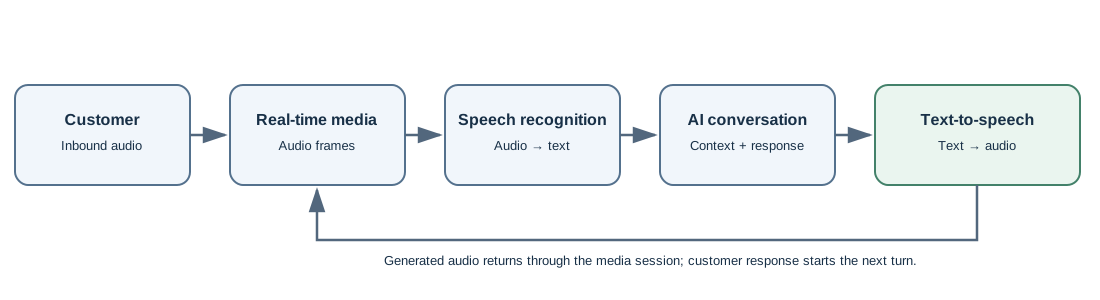
A typical application-level pipeline is:
- Customer audio reaches the real-time media component.
- Speech recognition converts incoming audio into text or another application-understood representation.
- AI conversation logic evaluates the response and context.
- Text-to-speech generates the outgoing response.
- The application streams the response audio back to the customer.
- The conversation continues until the objective is achieved or the call is terminated.
The speech-recognition engine, AI model, text-to-speech provider, conversation policy and interruption handling are application integrations. They are not automatically supplied by Microsoft Graph.
10.2 Production considerations
Plan for streaming latency, buffering, speech endpoint detection, customer interruptions, AI timeouts, fallback prompts, audio quality, network jitter, conversation context and media-session cleanup.
11. End the call and release resources
When the script or conversation is complete, terminate the call using its Graph call ID:
DELETE https://graph.microsoft.com/v1.0/communications/calls/{call-id}The setup guide notes that otherwise the call can remain open until the other side hangs up. Persist the final outcome and release application-hosted media resources.
12. Security, consent and customer privacy
Before production use:
- Protect client credentials and rotate them before expiry.
- Grant only the Graph permissions required by the chosen media mode.
- Validate every webhook notification.
- Restrict who can initiate calls and which customers can be contacted.
- Apply customer contact preferences and suppression rules.
- Announce AI-generated voice and any recording at the start of the call, as applicable.
- Check local rules for automated calls and recording consent.
- Define audio/transcript retention and deletion policies.
- Avoid logging secrets, tokens or unnecessary customer audio.
This is an engineering checklist, not legal advice. Obtain the required compliance review for each market in which calls will be placed.
13. Troubleshooting
| Symptom | Likely cause | Recommended check |
|---|---|---|
| 403, code 7507 — invalid source identity | Wrong source ID, user identity/token, missing resource-account binding, licence or number, or propagation delay | Use the resource account ObjectId with an app-only token; check ApplicationId, run Sync-CsOnlineApplicationInstance, verify licence and number; allow propagation |
| 403 Forbidden without 7507 | Calls.Initiate.All missing or admin consent not granted | Check Application permission, consent and token roles |
| Bot/app not found or calling disabled | Azure Bot missing, App ID mismatch or Teams calling disabled | Verify App ID, Teams channel and Calling webhook |
| 201 but phone never rings | Number not activated, no outbound capability, credits exhausted or wrong destination format | Check Activated, OutboundCalling, Communication Credits and E.164 |
| Phone rings, then silence | Webhook does not handle established event or application does not invoke playPrompt | Inspect webhook logs for the call ID and media operation |
| playPrompt fails or no audio | Audio URL inaccessible or file format incorrect | Verify public HTTPS and WAV PCM 16-bit mono 16 kHz |
| Call drops after a few seconds | Webhook is slow to return 202 or token validation/processing fails | Acknowledge promptly and process asynchronously |
| Token request fails (invalid_client) | Secret ID used instead of Value, wrong client/tenant or expired secret | Create a new secret and copy its Value |
| Wrong caller ID | Resource account number/configuration is incorrect | Verify assigned resource account number and PSTN configuration |
Isolate infrastructure from application failures
Use the direct PowerShell test call in Section 7.
- If the test call fails, troubleshoot Entra permissions, Azure Bot, resource-account binding, licences, number assignment and PSTN routing.
- If the test call succeeds but the business application fails, focus on token acquisition, Graph request construction, callback URL, webhook validation and media handling.
For a Microsoft support case, retain the tenant ID, app ID, resource-account UPN, Graph request ID, timestamp and relevant verification output. Never share client secrets or access tokens.
14. Implementation assumptions and boundaries
| Topic | Classification |
|---|---|
| Entra app registration and app-only token | Covered by the supplied setup guide |
| Azure Bot and Teams Calling webhook | Covered by the supplied setup guide |
| Teams resource account, licence and PSTN number | Covered by the supplied setup guide |
| Graph call creation and webhook states | Covered by the supplied setup guide |
| Service-hosted playPrompt | Covered by the supplied setup guide |
| recordResponse and subscribeToTone | Identified by the supplied setup guide |
| Application-hosted real-time media requirements | Covered at infrastructure level by the supplied setup guide |
| Speech recognition, LLM orchestration and TTS provider | Assumed application integrations; provider not specified |
| Database schema, queue, retries and observability | Recommended production design; implementation-specific |
| Kubernetes or microservices deployment | Optional deployment choice, not a prerequisite |
Conclusion
Building an AI-powered outbound calling capability requires more than generating speech and connecting a telephone number. Identity, telephony, call control, webhook processing and media delivery must work together.
Service-hosted media provides a practical approach for recorded or AI-generated messages. Application-hosted media enables real-time AI conversations but requires a dedicated real-time media host and processing pipeline.
The most useful implementation discipline is to validate the Microsoft infrastructure independently before debugging application code. Once the resource account, licence, PSTN number, bot binding and Graph permissions are correct, the application team can focus on the call lifecycle and selected media workflow.
The key takeaway: Treat call control and media processing as separate architectural responsibilities. This makes the solution easier to troubleshoot, extend and operate.
Microsoft references
- Microsoft Graph Communications API overview
- Create call — Microsoft Graph
- Play prompt — Microsoft Graph
- Microsoft Teams Phone
- Azure Bot Service
Portal labels, licensing availability and API behavior can change. Verify current Microsoft documentation and tenant-specific availability before repeating the setup in another environment.